The New .slnx Solution File Format in .NET: A Quick Migration Guide

Bhrugen Patel
Author
The New .slnx Solution File Format in .NET: A Quick Migration Guide
If you''ve been working with .NET for any length of time, you''re familiar with the .sln solution file. It''s been the standard since Visual Studio .NET launched in 2002. But let''s be honest: it''s verbose, difficult to read, and merge conflicts are a nightmare.
Enter the .slnx format—a modern, XML-based solution file that''s cleaner, simpler, and designed for today''s development workflows.
What is .slnx?
The .slnx format is the new XML-based solution file format that''s replacing the traditional .sln format. While the old format has served us for over two decades, it comes with some significant pain points:
❌ Old .sln Problems:
- • Verbose and cryptic: Filled with GUIDs, nested configurations, and boilerplate that makes files hard to read
- • Merge conflict hell: When multiple developers modify the solution, resolving conflicts is often tedious
- • Poor version control: Diffs are difficult to understand, making code reviews less effective
The .slnx format addresses all of these issues with a clean, minimal XML structure that''s actually human-readable.
Two Easy Ways to Migrate
The best part about .slnx? Migrating is incredibly simple. You have two options:
Option 1: Command Line Migration
Open your terminal in your solution directory and run:
dotnet sln migrateThat''s it. This single command will:
✅ What It Does:
- • Convert your .sln file to the new .slnx format
- • Automatically rename your old file to .sln.old as a backup
- • Preserve all your project references and configurations
Option 2: Visual Studio Save As
Prefer a GUI approach? Even easier:
💡 Step-by-Step:
- 1. Open your solution in Visual Studio
- 2. Go to File → Save As
-
3.
Change the file extension from
.slnto.slnx - 4. Click Save
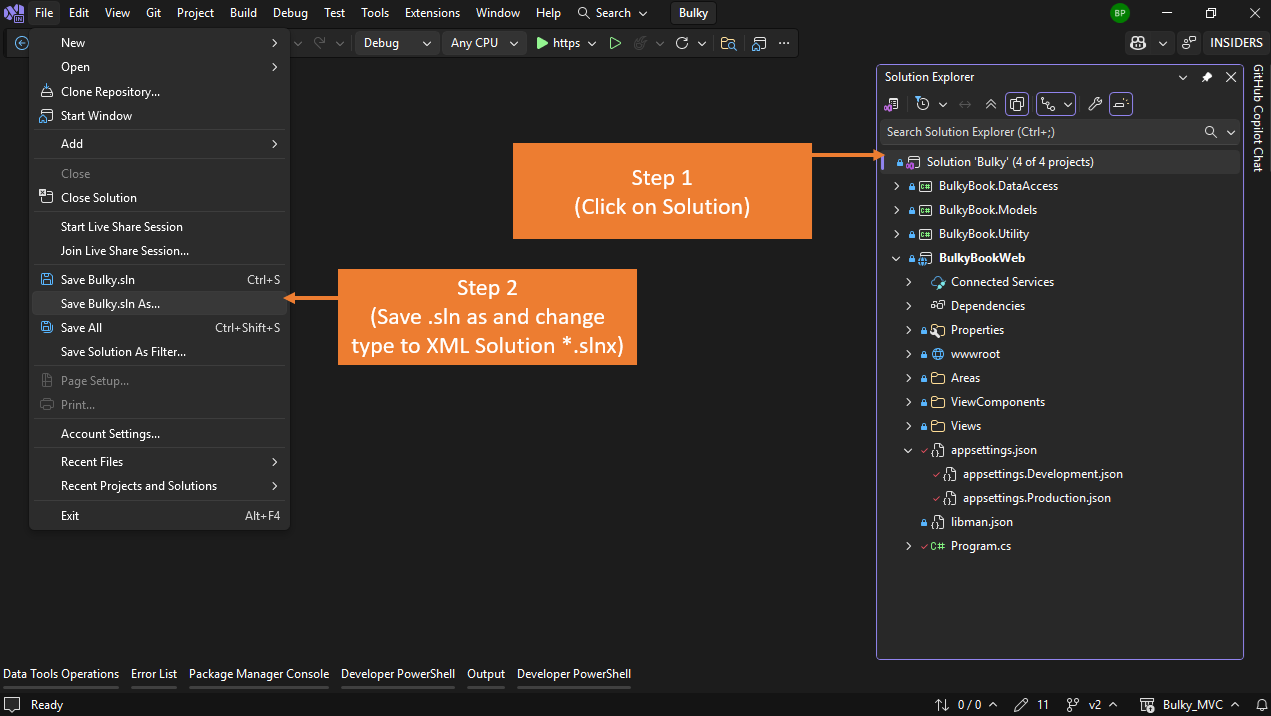
Visual Studio automatically converts the format for you. You can even keep both files if you need backward compatibility with older tools.
The Difference is Night and Day
Let me show you what I mean with a side-by-side comparison.
Old .sln Format
Microsoft Visual Studio Solution File, Format Version 12.00
# Visual Studio Version 17
VisualStudioVersion = 17.0.31903.59
MinimumVisualStudioVersion = 10.0.40219.1
Project("{9A19103F-16F7-4668-BE54-9A1E7A4F7556}") = "MyProject", "MyProject\MyProject.csproj", "{8BC9CEB8-8B4A-11D0-8D11-00A0C91BC942}"
EndProject
Global
	GlobalSection(SolutionConfigurationPlatforms) = preSolution
		Debug|Any CPU = Debug|Any CPU
		Release|Any CPU = Release|Any CPU
	EndGlobalSection
	GlobalSection(ProjectConfigurationPlatforms) = postSolution
		{8BC9CEB8-8B4A-11D0-8D11-00A0C91BC942}.Debug|Any CPU.ActiveCfg = Debug|Any CPU
		{8BC9CEB8-8B4A-11D0-8D11-00A0C91BC942}.Debug|Any CPU.Build.0 = Debug|Any CPU
		...
	EndGlobalSection
EndGlobal
❌ Look at All That Noise
GUIDs everywhere, cryptic sections, and good luck figuring out what changed in a diff. Every time I see this in a merge conflict, I die a little inside.
New .slnx Format
<Solution>
  <Project Path="MyProject\MyProject.csproj" />
  <Project Path="MyLibrary\MyLibrary.csproj" />
</Solution>
✅ Clean and Simple
That''s it. You can actually read it. No GUIDs, no mysterious configuration blocks—just your projects and their paths. This is what a solution file should have been from the start.
Why You Should Make the Switch
Here are five compelling reasons to migrate to .slnx:
1. Merge Conflicts Are Way Easier
With the simplified XML structure, when multiple team members edit the solution file, merge conflicts are cleaner and much easier to resolve. No more deciphering GUID mismatches or nested configuration sections.
2. Human-Readable Format
You can actually understand what''s in your solution file without referencing documentation or using special tools. This makes troubleshooting and manual edits straightforward.
3. Better Version Control Integration
Git diffs are now meaningful. In pull requests, you can clearly see what projects were added or removed, making code reviews more effective.
4. Future-Proof and Extensible
XML is a well-understood, extensible format. Microsoft can add new features to the solution format without breaking backward compatibility or requiring complex parsers.
5. Universal Tool Support
Visual Studio, VS Code, and JetBrains Rider all support .slnx (or will very soon). The format is designed to work across the entire .NET ecosystem.
Everything Still Works
One concern you might have: "Will this break my workflow?"
The answer is no. Once you''ve migrated to .slnx, everything works exactly as before:
✅ Nothing Breaks:
- • Build, run, and debug work identically
- • All your project references and dependencies are preserved
- • You can still add/remove projects through the IDE
- • Solution folders and project organization remain intact
The only difference is behind the scenes—your solution file is now cleaner and more maintainable.
Important Things to Know Before Migrating
Make sure you''re using up-to-date tools before migrating. The .slnx format requires:
⚠️ Requirements:
- • Visual Studio 2022 version 17.12 or newer
- • Recent versions of the .NET SDK
- • Updated versions of JetBrains Rider (if you use it)
If you''re on older versions, update first to ensure full compatibility.
⚠️ Critical: CI/CD Pipeline Considerations
Here''s something that can bite you if you''re not careful:
❌ Don''t Delete Your .sln File Yet!
If you have CI/CD pipelines (Azure DevOps, GitHub Actions, TeamCity, etc.) that reference your .sln file, they will break if you delete it. This includes:
-
•
Build tasks that use
**/*.slnwildcards - • Explicit paths to your solution file in YAML pipelines
-
•
Build scripts that call
msbuild YourSolution.sln - • Third-party tools that haven''t been updated to support .slnx
✅ The Safe Migration Strategy:
- 1. Keep both files: The .sln and .slnx files can coexist in the same directory without any issues
-
2.
Update your pipelines: Change references from
*.slnto*.slnxor use the specific filename - 3. Test thoroughly: Run a few builds with the .slnx file to make sure everything works
- 4. Only then delete .sln: Once you''re confident everything works, you can safely remove the old .sln file
Example: Azure DevOps Pipeline Update
If your Azure DevOps pipeline looks like this:
- task: VSBuild@1
  inputs:
    solution: ''**/*.sln''
    msbuildArgs: ''/p:Configuration=Release''
Update it to:
- task: VSBuild@1
  inputs:
    solution: ''**/*.slnx''
    msbuildArgs: ''/p:Configuration=Release''
💡 Pro Tip
You can also keep both formats in your repository temporarily. Visual Studio will automatically use .slnx if it''s available, and fall back to .sln if not. This gives you time to migrate your CI/CD infrastructure safely.
Should You Migrate?
Honestly? Yes. There''s virtually no downside to migrating, and the benefits—especially for teams—are significant. Cleaner files, easier merges, and better version control make this a no-brainer upgrade.
The migration takes seconds with either the command line or Visual Studio approach, and you can always keep your old .sln file as a backup if needed.
💡 Pro Tip
If you have CI/CD pipelines or build scripts that reference .sln files, you may need to update them. But most modern build tools handle both formats seamlessly.
Wrapping Up
The .slnx format represents a long-overdue modernization of the .NET solution file. After more than 20 years with the same format, it''s refreshing to see Microsoft simplify something that''s been a persistent pain point for developers.
Whether you use the command line or Visual Studio''s Save As feature, migrating takes just seconds. And once you do, you''ll wonder why you didn''t switch sooner.
⚡ Quick Recap:
- Migration takes literally seconds with
dotnet sln migrate - .slnx files are human-readable XML, not cryptic text with GUIDs
- Merge conflicts become way easier to resolve
- Everything works exactly the same after migration
- No downside - just upgrade your Visual Studio first
Now go fix those solution files! Your future self (and your team) will thank you.